Photoshop Layer Validator
A downloadable photoshop script
Functional Overview
1. Validate Layers
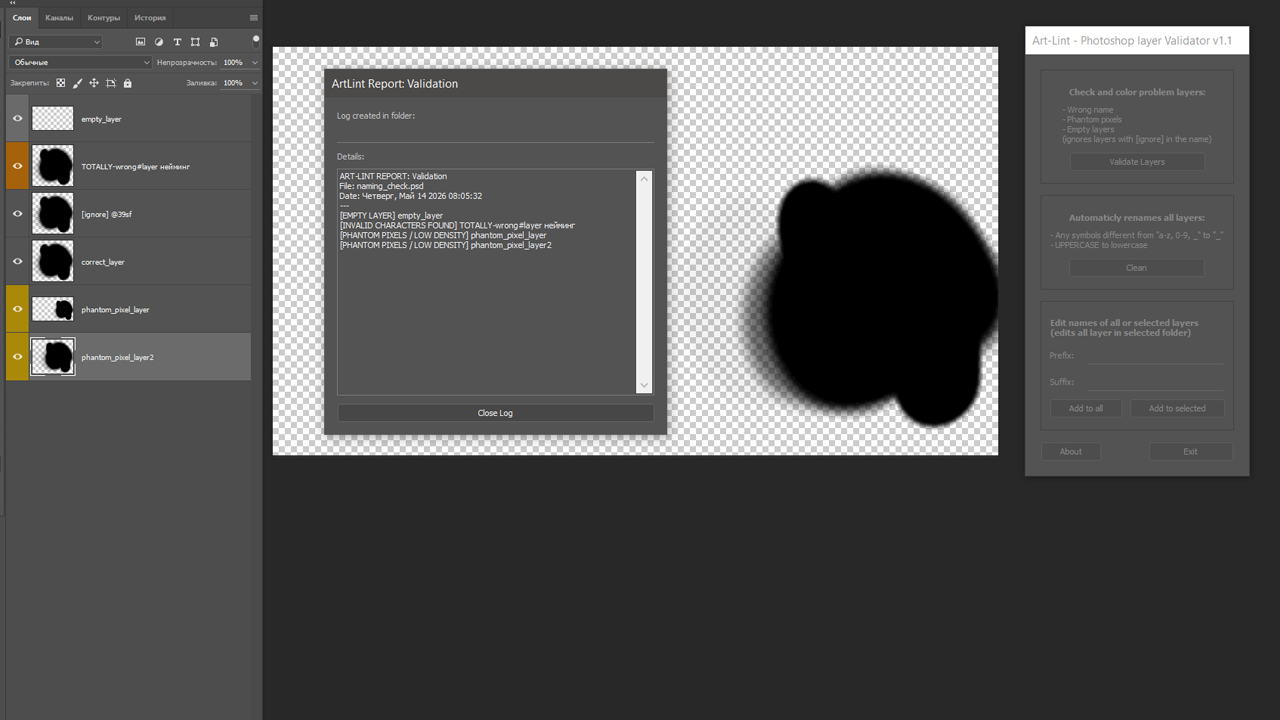
- Naming Check: Scans layer names for invalid characters. Non-standard names (using Cyrillic, spaces, or special symbols) are color-coded Orange.
- Empty Layer Detection: Identifies layers with zero pixel data and marks them Gray.
- Phantom Pixel Scan: Analyzes layer density. If a layer contains stray, low-opacity pixels that bloat the bounding box, it is marked Yellow.
- Reporting: Generates a detailed
.txtlog listing every detected issue.
2. Clean (Naming Sanitizer)
- Function: Automatically fixes naming errors by converting text to lowercase and replacing all spaces and illegal symbols with underscores (
_). - Result: Ensures 100% compatibility with Spine 2D and game engine naming conventions.
3. Add Prefix/Suffix (Layer Renamer)
- Function: Bulk-edits names by adding custom text to the beginning or end of layer titles.
- Scope: Supports "Add to All" for the entire document or "Add to Selected" for specific groups/layers.
4. About & Support
- Function: Provides version info, developer credentials, and quick-access links to LinkedIn and project support.
Features
- Finds and highlights problem layers - wrong naming and low layer dencity/phantom pixels. (Highlitng with color codes help with manual renaming)
- Automaticly fixes naming - Upperscale to lowerscale, any symbols but 0-9, a-z,_ to "_". (For cases where's no need in proper manual naming)
- Adds prefix and suffix to layers (all or selected)
- Creates detailed logs of changes.
Quality of life features:
- Changes made with script written as 1 layer in history, so it can easily be undo(ctrl+z)
- Supports photoshop CC 2015 and higher
Workflow
1. Naming Cleanup
Run the "Clean" function to automatically sanitize all layer names, eliminating manual renaming.
2. Technical Audit
Run Validate Layers to identify empty layers and objects with excessive empty space (phantom pixels).
3. Manual Adjustment
- Delete empty layers.
- Clean up "aura" and "phantom pixels" artifacts in layers marked with yellow.
4. Final Organization
Re-run the script to add prefixes/suffixes (e.g., for skins or Spine-specific tags). The script processes selected folders and renames all nested layers automatically.
Automation & Notes
- Tags: Layers with the
[ignore]tag are skipped. - Permissions: The script automatically unlocks layers to perform actions, so no manual file preparation is required.
- Refinement: If you need layers to have proper names setted up manually — go to Step 2 from the start.
Download
Install instructions
--- INSTALLATION ---
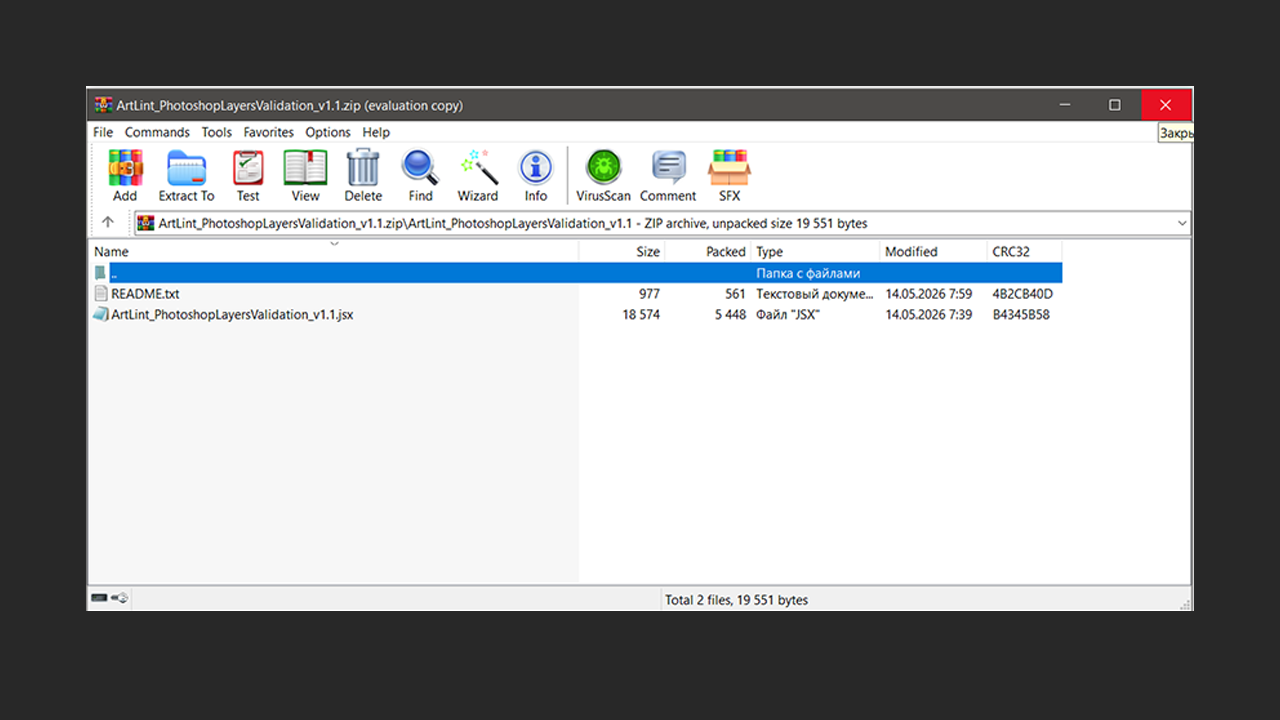
1. Copy 'ArtLint_PhotoshopLayersValidation.jsx' to your Photoshop Scripts folder: - Windows: C:\Program Files\Adobe\Adobe Photoshop [Version]\Presets\Scripts - macOS: /Applications/Adobe Photoshop [Version]/Presets/Scripts
2. Restart Photoshop.
3. Access the script via: File > Scripts > ArtLint_PhotoshopLayersValidation
--- HOW TO USE ---
1. Open your PSD file.
2. Run the script.
3. Use 'Validate Layers' to check for errors. The script will color-code problematic layers in your Layers panel.
4. Use 'Clean' to automatically fix naming issues.
5. Check the generated Log file in your project folder for a full breakdown of issues.
Leave a comment
Log in with itch.io to leave a comment.